After completing this lesson, you'll be able to:
In this lesson, you will:
After completing this lesson, you'll be able to:
In this lesson, you will:
If you're taking a live Safe Software-hosted training course or using an on-demand lab for this course, we've already imported the content for this lesson into your FME Flow.
If you're completing this lesson with your own FME Flow, you must import the starting project with the content into your FME Flow.
See FME Flow Authoring: Instructions to Import the Starting Project for directions to import the project to your own FME Flow.
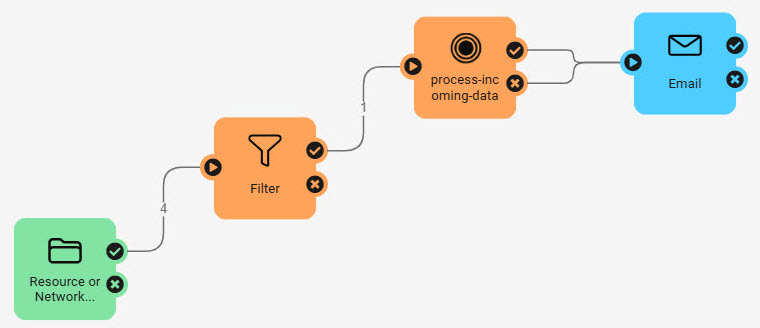
An automation is a workflow that reacts to an event (a trigger) and then performs one or more actions. Triggers respond to events such as updated files, webhooks, or scheduled times, and send a message to trigger downstream actions. Actions often include running one or more FME workspaces, sending emails, writing files, or branching based on results. You connect these steps on a canvas so the process runs the same way every time.
This course focuses specifically on Flow apps. For more training on automations, see the Automate Workflows with FME Flow learning path.
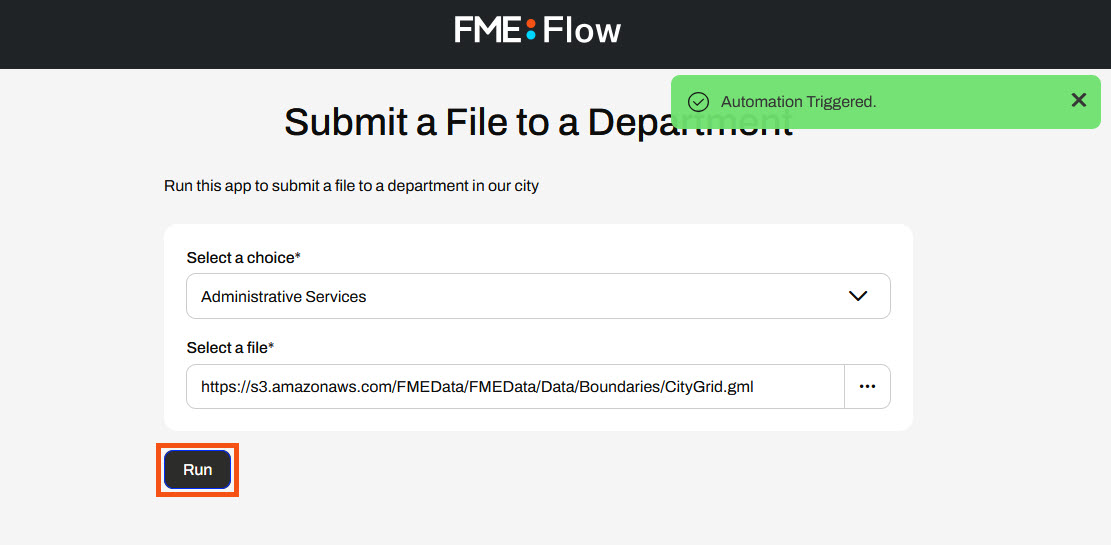
Automation apps let you trigger an automation through an app. Like other Flow apps, you access and share automation apps with URLs that FME Flow generates once you build your app. By sharing app URLs, users may access FME Automations functionality through a simple form without requiring any FME knowledge or expertise. Automation apps let you enter parameters to control how the automation runs. When you run an automation app, FME Flow will display a message on the app page if the automation is successfully triggered.
Creating an automation app is very similar to creating a workspace app; you fill out a form to set app details and select the automation you want to run from the app.
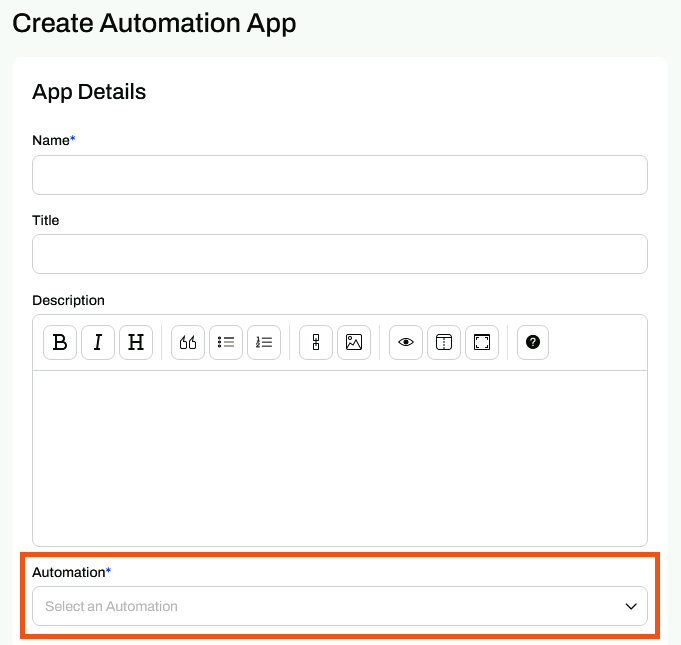
In FME 2026.1, there is currently a bug where the Create Automation App pages display all automations in the automation field, not just automations that use a manual trigger. If you select an automation without a manual trigger, it will throw an error at runtime.
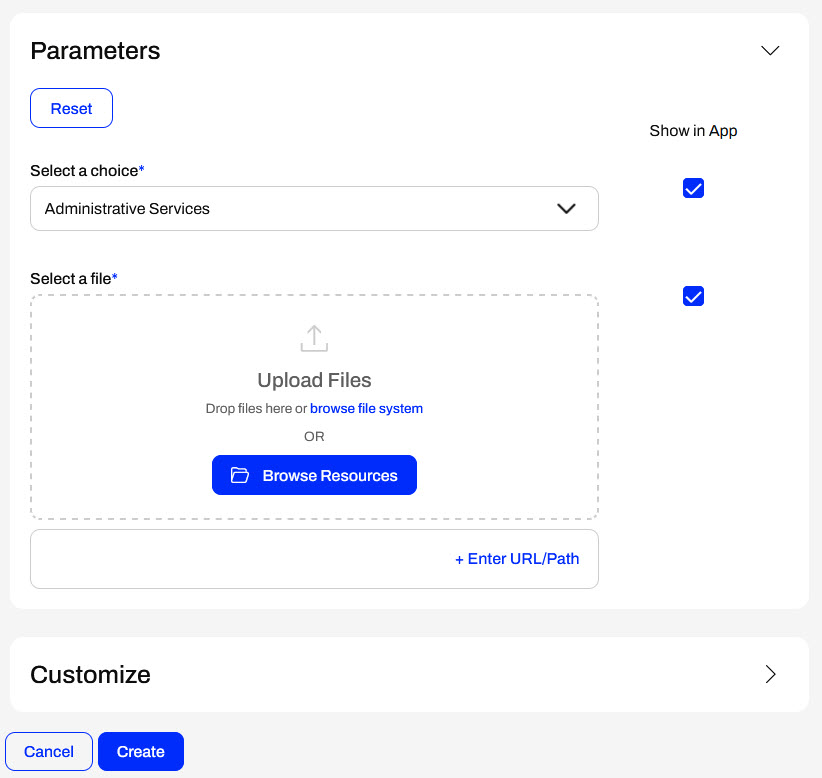
Once you select an automation, the Parameters section appears, where you can configure default values for the app. These parameters link to the automation's manual parameters. You also have the same customization options, where you may tailor your app to your organization's branding with colors, logos, banners, and images.
Similar to workspace apps, automation apps will include Resource Permissions and Connection Permissions if your automation uses resources or connections. You will need to give the app permission to use them so your automation app functions successfully.
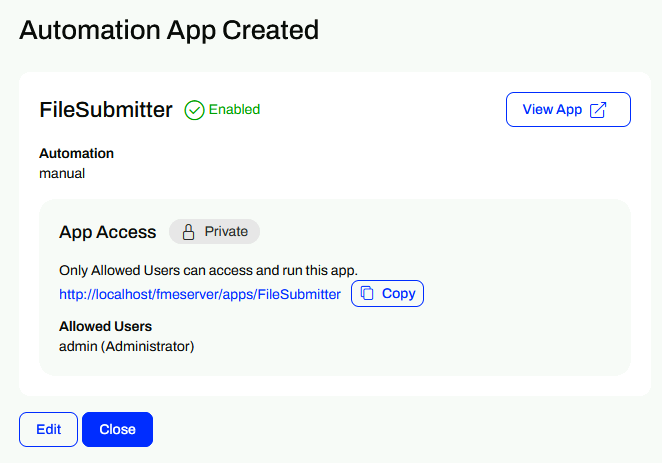
Once you finalize your app, FME Flow generates a URL you can use to access it. You can copy the URL to share it, view the app immediately in another browser tab, or return to editing the app. FME Flow also summarizes the users and roles that can access the automation app.
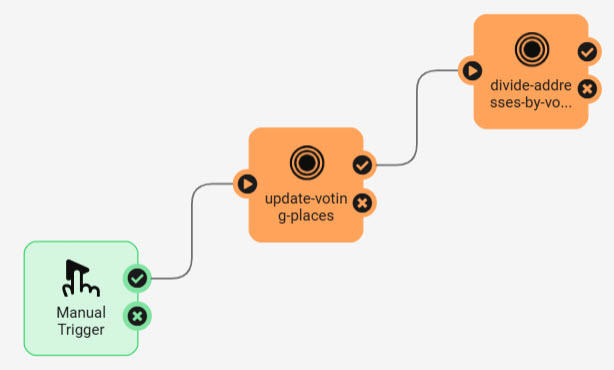
To use an automation in an automation app, your automation must use a Manual Trigger. Manual triggers do not respond to external events; instead, they trigger automations on demand. Automation apps send messages to manual triggers to kick off the automation.
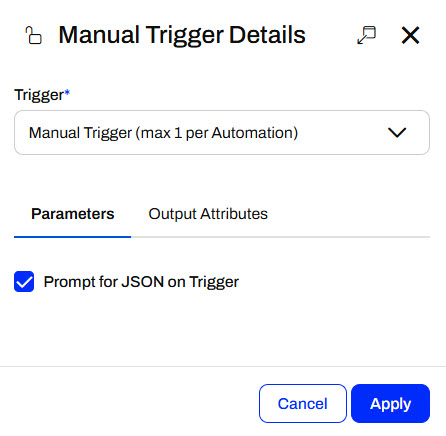
The only parameter to configure for a manual trigger is the Prompt for JSON on Trigger option. This option allows you to enter JSON input into automation when you manually trigger it from the Automations canvas. It is usually unnecessary for automations you plan to trigger through automation apps.
Manual triggers have unique output attributes called manual parameters. Manual parameters are customizable attributes that you create to take input into your automation. To add and edit manual parameters for an automation, you must open the Manual Trigger Details. In the Output Attributes tab, you'll see Manual Parameters nested under Success.
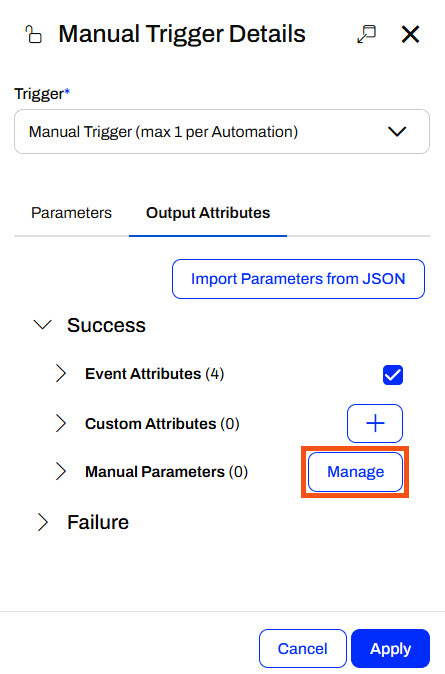
You click Manage to open the Manual Parameters Editor, where you create manual parameters. Like user parameters in FME Workbench, you can add many input types to your automation, depending on your workflow.
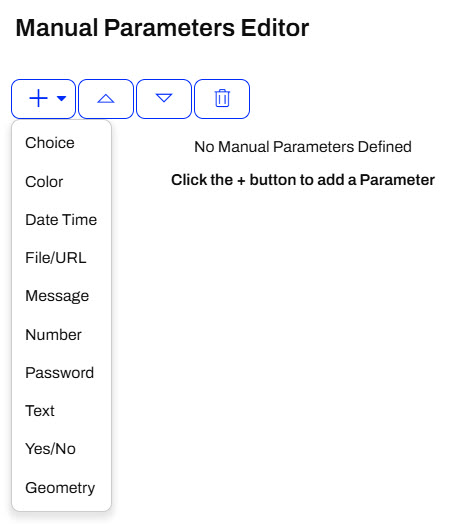
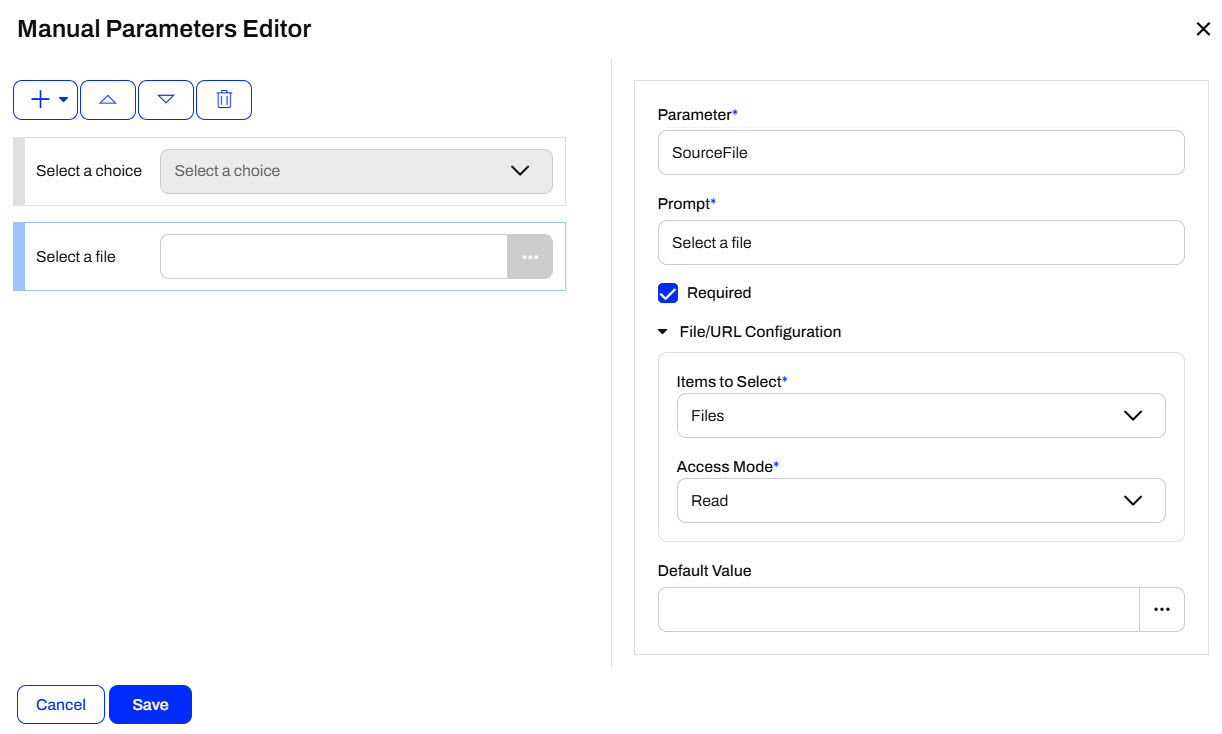
The Manual Parameters Editor displays the parameter list on the left and individual parameter properties on the right.
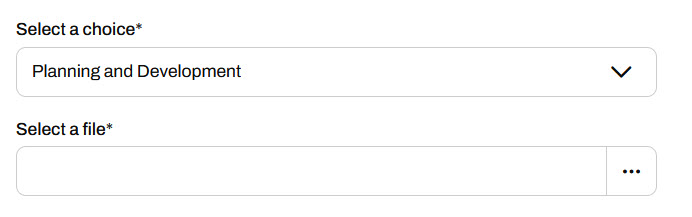
When you create an automation app, these parameters appear on the app's web page for users to enter values.
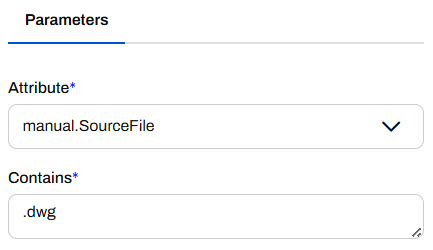
To use the input values in your automation, you reference manual parameters in downstream actions like any other output attributes and automation parameters. All Manual Parameters begin with the prefix manual.
Automation app permissions work differently from other Flow apps. Because automations are complex, app users must log into FME Flow to run an automation app and trigger an automation. When you build your automation app, you select which users and roles in FME Flow can access your app.
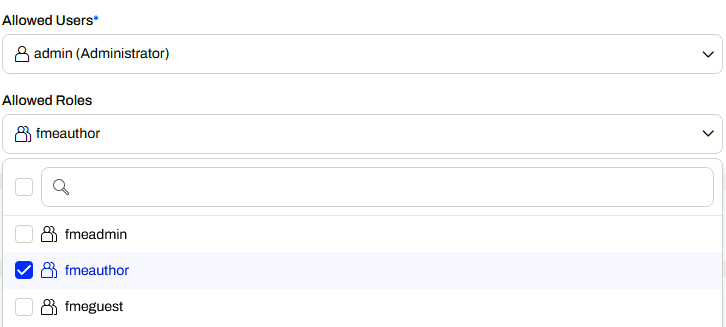
When you create an automation app, FME Flow generates the app URL and shows you its App Access information, which summarizes who can reach the app. Authorized FME Flow users open that URL, sign in, and run the automation. If users don't have access to the automation app, FME Flow prevents them from opening it and alerts them that they don't have permission to access the app.
For more information on user permissions in FME Flow, see Role and User-based Access Control.

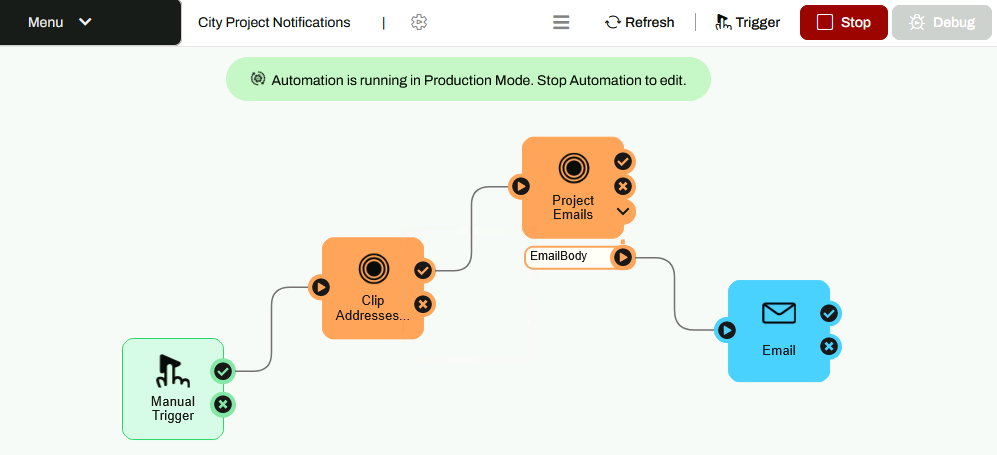
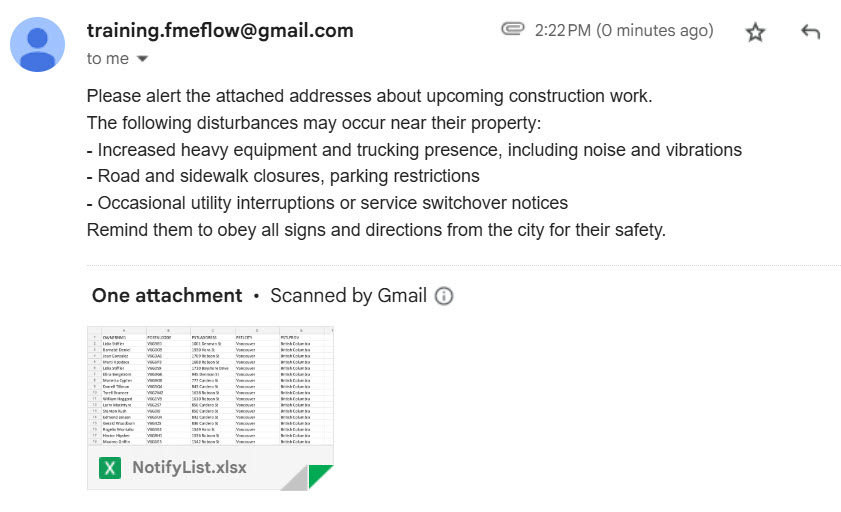
Sven, a Planning Analyst, needs to warn residents whose addresses fall near upcoming infrastructure work. His automation clips residential addresses to an area he supplies, builds a notification based on the project type, and emails the resulting list. He wants to trigger it without opening FME Flow each time, and to let his colleagues run it too.
In this exercise, you will:
An automation app can only trigger an automation that starts with a manual trigger, and the manual trigger's parameters become the fields the app user fills in. Knowing which parameters exist tells you what the app will look like before you build it.
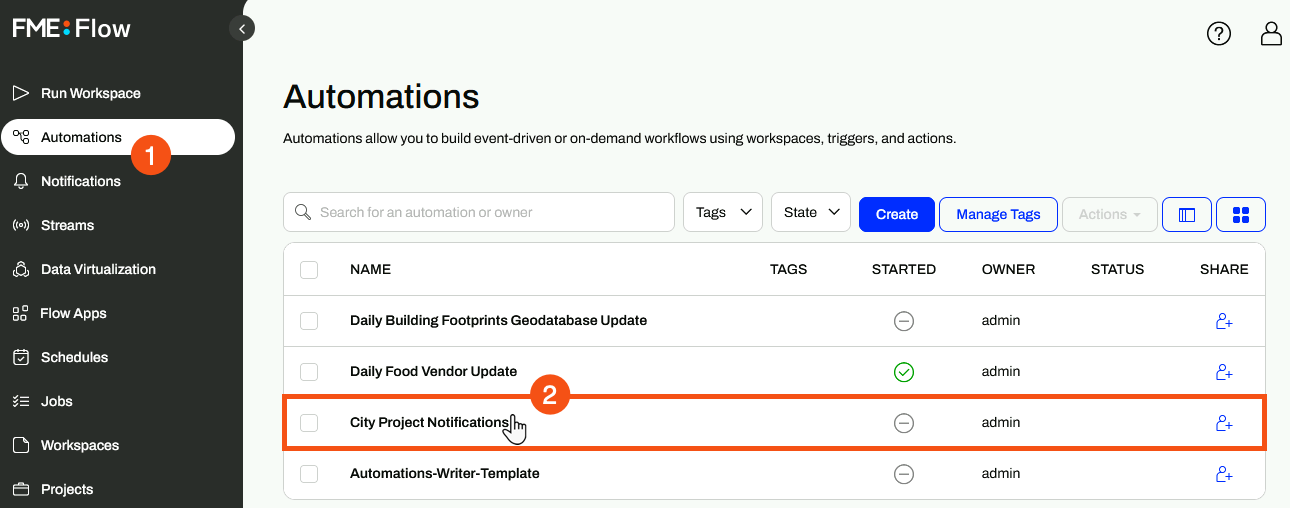
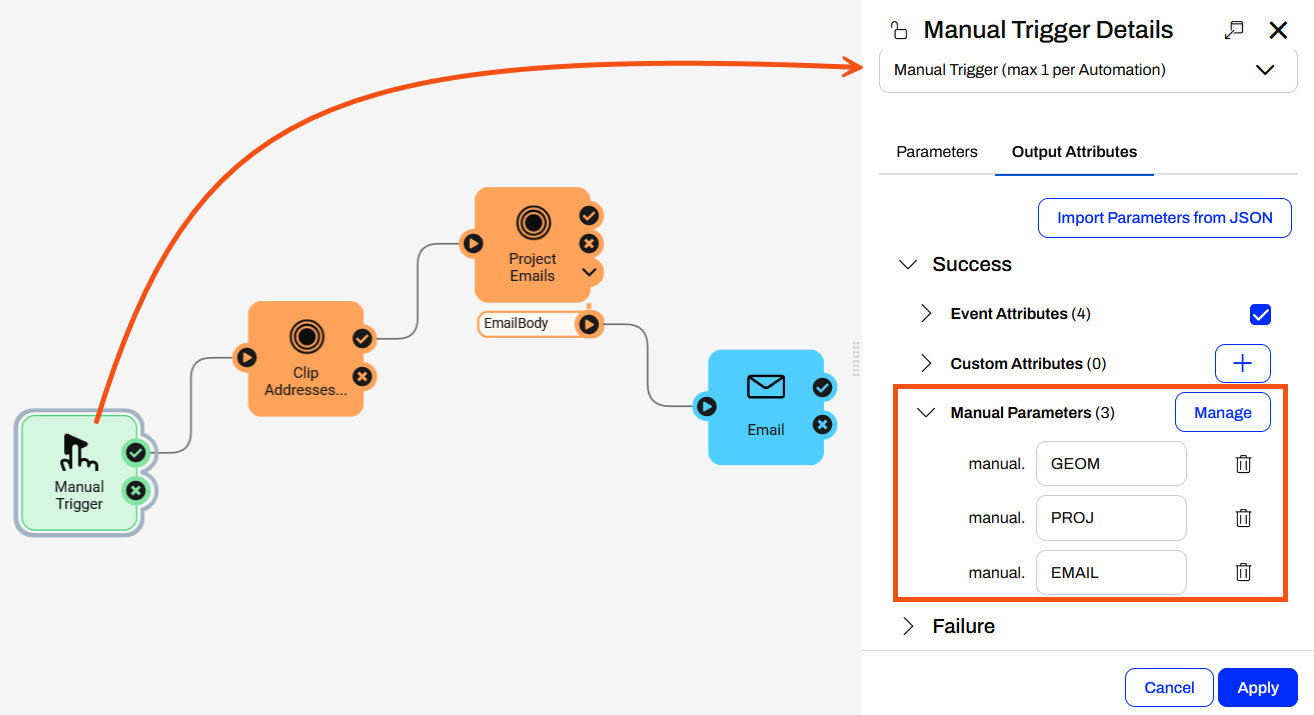
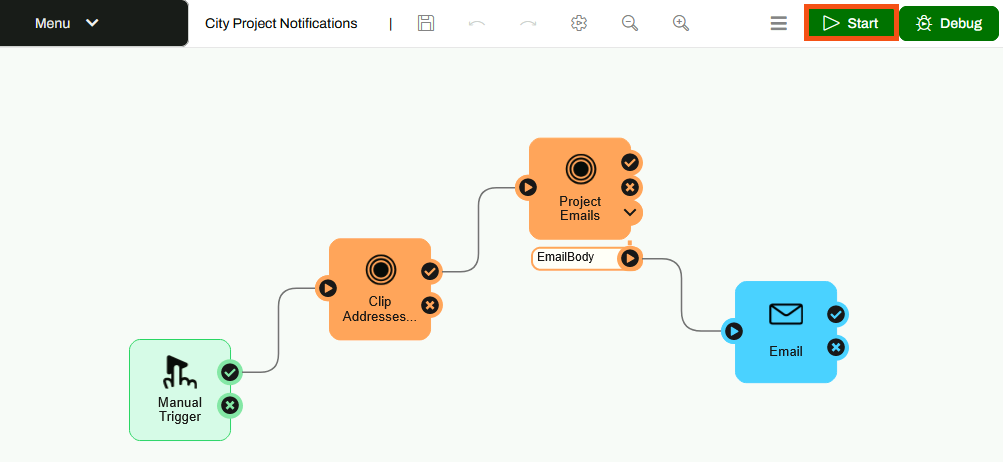
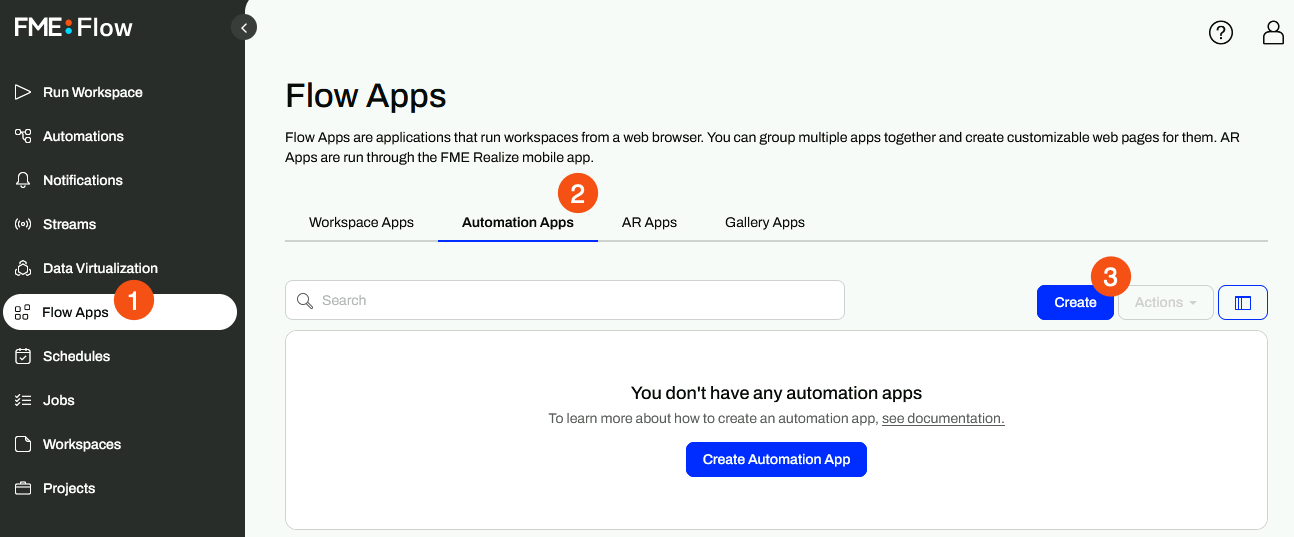
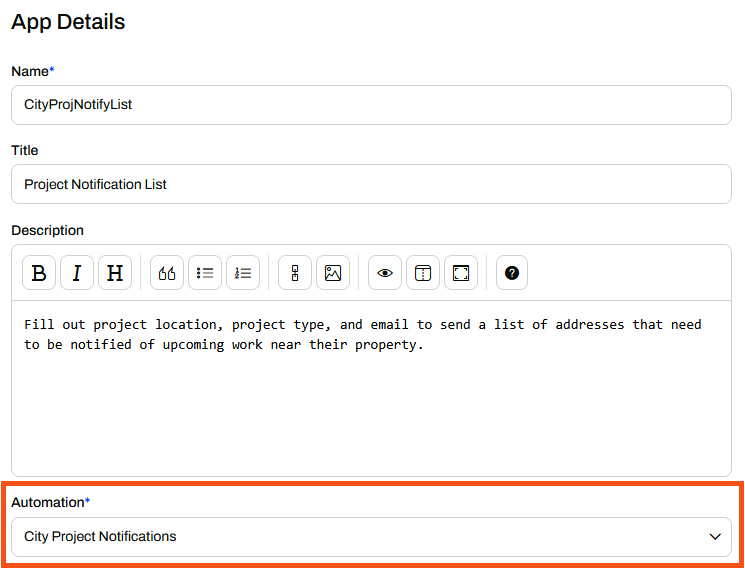
In FME 2026.1, a bug currently causes the Create Automation App pages to display all automations in the automation field, not just automations that use a manual trigger. If you select an automation without a manual trigger, it will throw an error at runtime.
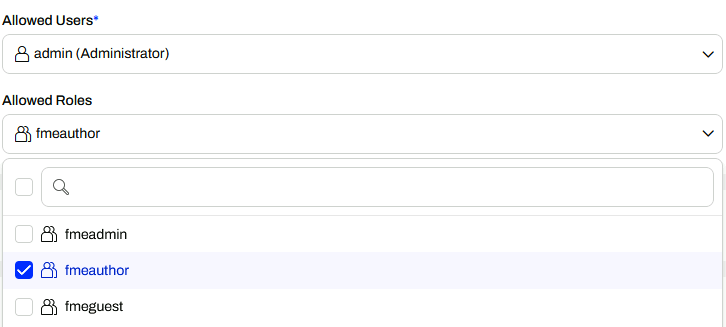
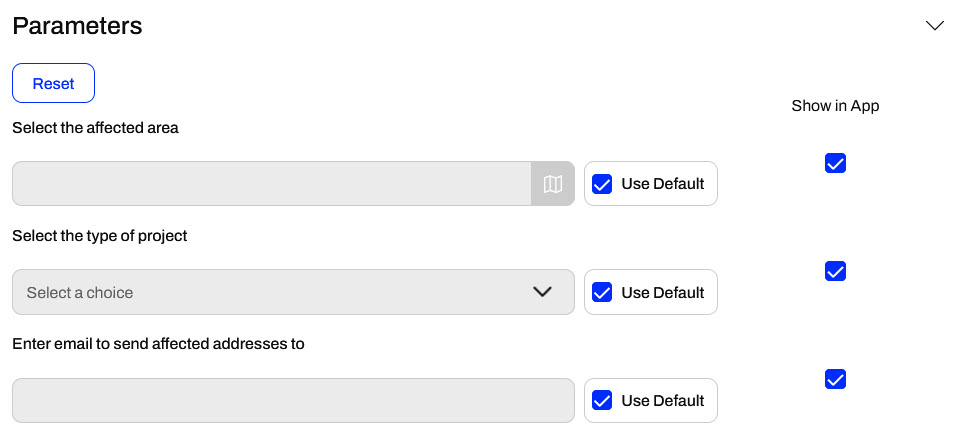
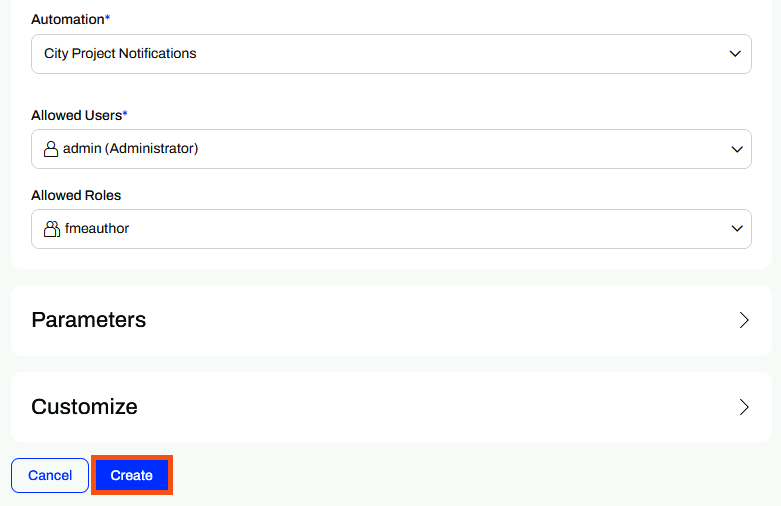
As with a workspace app, creating the app produces the URL you share.
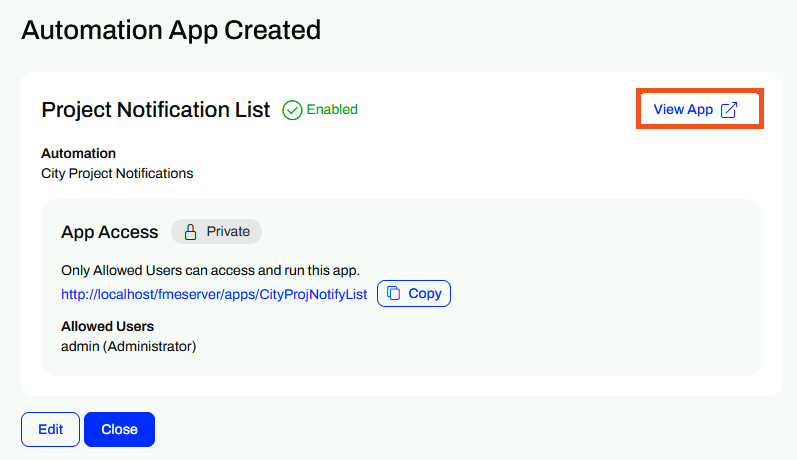
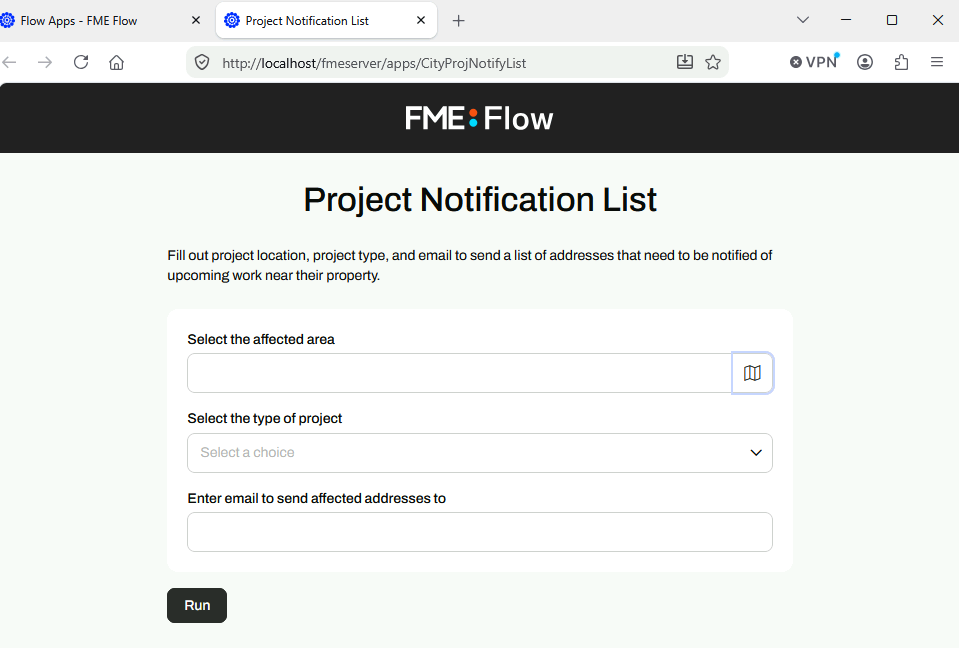
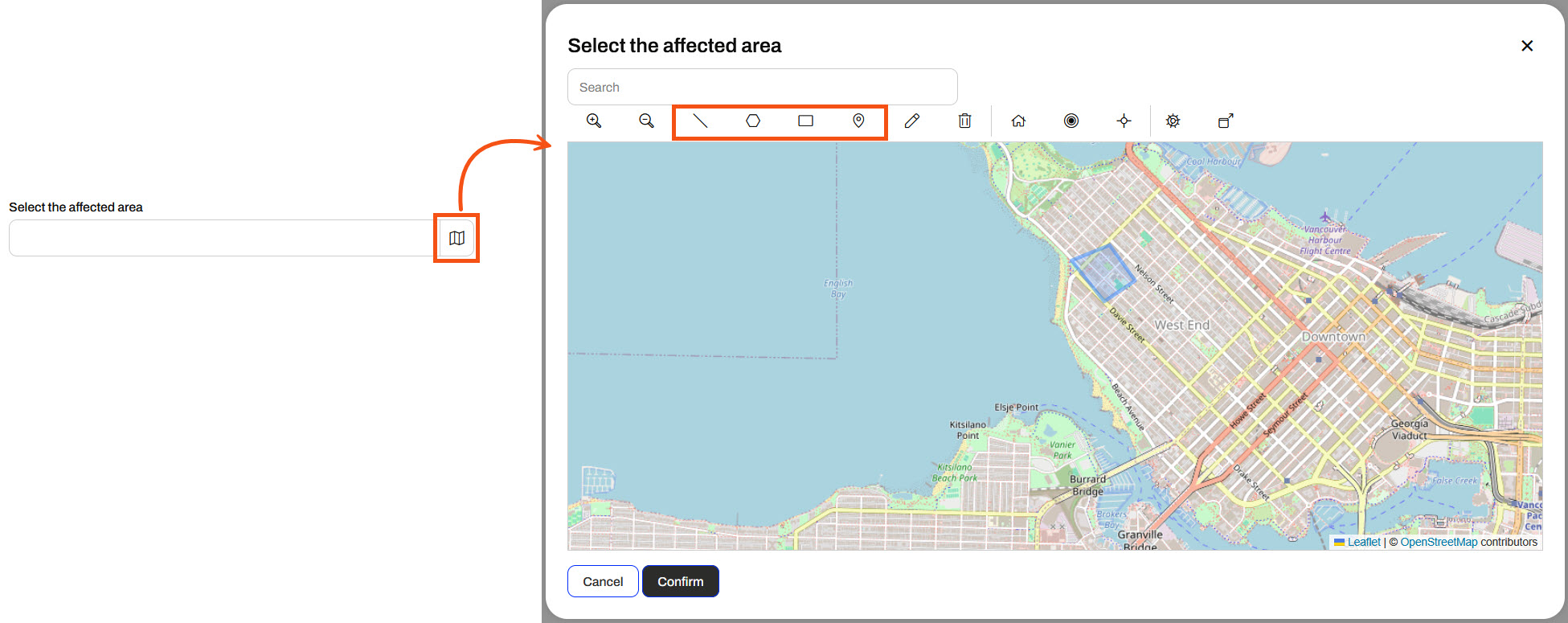
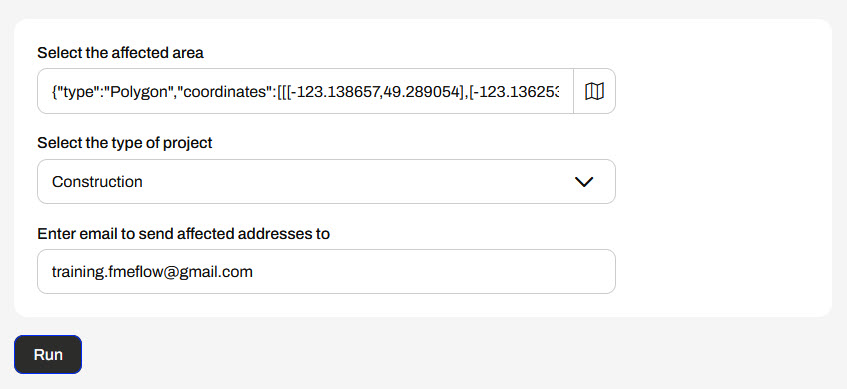
The app presents the manual parameters as ordinary form fields, including a map for the geometry parameter, so the person running it needs to know nothing about the automation behind it.

You have built an automation app that takes user input through a manual trigger, runs two workspaces, and emails a result, all from a single URL.
If you're taking a live Safe Software-hosted training course or using an on-demand lab for this course, we've already imported the content for this lesson into your FME Flow.
If you're completing this lesson with your own FME Flow, you must import the starting project with the content into your FME Flow.
See FME Flow Authoring: Instructions to Import the Starting Project for directions to import the project to your own FME Flow.
An automation is a workflow that reacts to an event (a trigger) and then performs one or more actions. Triggers respond to events such as updated files, webhooks, or scheduled times, and send a message to trigger downstream actions. Actions often include running one or more FME workspaces, sending emails, writing files, or branching based on results. You connect these steps on a canvas so the process runs the same way every time.
This course focuses specifically on Flow apps. For more training on automations, see the Automate Workflows with FME Flow learning path.
Automation apps let you trigger an automation through an app. Like other Flow apps, you access and share automation apps with URLs that FME Flow generates once you build your app. By sharing app URLs, users may access FME Automations functionality through a simple form without requiring any FME knowledge or expertise. Automation apps let you enter parameters to control how the automation runs. When you run an automation app, FME Flow will display a message on the app page if the automation is successfully triggered.
Creating an automation app is very similar to creating a workspace app; you fill out a form to set app details and select the automation you want to run from the app.
In FME 2026.1, there is currently a bug where the Create Automation App pages display all automations in the automation field, not just automations that use a manual trigger. If you select an automation without a manual trigger, it will throw an error at runtime.
Once you select an automation, the Parameters section appears, where you can configure default values for the app. These parameters link to the automation's manual parameters. You also have the same customization options, where you may tailor your app to your organization's branding with colors, logos, banners, and images.
Similar to workspace apps, automation apps will include Resource Permissions and Connection Permissions if your automation uses resources or connections. You will need to give the app permission to use them so your automation app functions successfully.
Once you finalize your app, FME Flow generates a URL you can use to access it. You can copy the URL to share it, view the app immediately in another browser tab, or return to editing the app. FME Flow also summarizes the users and roles that can access the automation app.
To use an automation in an automation app, your automation must use a Manual Trigger. Manual triggers do not respond to external events; instead, they trigger automations on demand. Automation apps send messages to manual triggers to kick off the automation.
The only parameter to configure for a manual trigger is the Prompt for JSON on Trigger option. This option allows you to enter JSON input into automation when you manually trigger it from the Automations canvas. It is usually unnecessary for automations you plan to trigger through automation apps.
Manual triggers have unique output attributes called manual parameters. Manual parameters are customizable attributes that you create to take input into your automation. To add and edit manual parameters for an automation, you must open the Manual Trigger Details. In the Output Attributes tab, you'll see Manual Parameters nested under Success.
You click Manage to open the Manual Parameters Editor, where you create manual parameters. Like user parameters in FME Workbench, you can add many input types to your automation, depending on your workflow.
The Manual Parameters Editor displays the parameter list on the left and individual parameter properties on the right.
When you create an automation app, these parameters appear on the app's web page for users to enter values.
To use the input values in your automation, you reference manual parameters in downstream actions like any other output attributes and automation parameters. All Manual Parameters begin with the prefix manual.
Automation app permissions work differently from other Flow apps. Because automations are complex, app users must log into FME Flow to run an automation app and trigger an automation. When you build your automation app, you select which users and roles in FME Flow can access your app.
When you create an automation app, FME Flow generates the app URL and shows you its App Access information, which summarizes who can reach the app. Authorized FME Flow users open that URL, sign in, and run the automation. If users don't have access to the automation app, FME Flow prevents them from opening it and alerts them that they don't have permission to access the app.
For more information on user permissions in FME Flow, see Role and User-based Access Control.
Sven, a Planning Analyst, needs to warn residents whose addresses fall near upcoming infrastructure work. His automation clips residential addresses to an area he supplies, builds a notification based on the project type, and emails the resulting list. He wants to trigger it without opening FME Flow each time, and to let his colleagues run it too.
In this exercise, you will:
An automation app can only trigger an automation that starts with a manual trigger, and the manual trigger's parameters become the fields the app user fills in. Knowing which parameters exist tells you what the app will look like before you build it.
In FME 2026.1, a bug currently causes the Create Automation App pages to display all automations in the automation field, not just automations that use a manual trigger. If you select an automation without a manual trigger, it will throw an error at runtime.
As with a workspace app, creating the app produces the URL you share.
The app presents the manual parameters as ordinary form fields, including a map for the geometry parameter, so the person running it needs to know nothing about the automation behind it.
You have built an automation app that takes user input through a manual trigger, runs two workspaces, and emails a result, all from a single URL.
